How to Mass Unsubscribe from Emails in Gmail (The Fast Way)

If your Gmail inbox is overflowing with newsletters, promotional offers and marketing emails you never read, you're not alone. Over time, it's easy to accumulate hundreds of subscriptions from retailers, travel companies, software providers and mailing lists you signed up for years ago. Before long, important emails become buried beneath a constant stream of messages you don't want.
While Gmail makes it easy to unsubscribe from individual senders, it doesn't offer a built-in way to unsubscribe from multiple email lists at once. If you're trying to clean up hundreds or even thousands of unwanted subscriptions, manually opening emails one by one quickly becomes a frustrating and time-consuming task.
The good news is that there are several ways to reduce unwanted emails, from using Gmail's own unsubscribe feature to using dedicated inbox management tools that can identify and remove multiple subscriptions in minutes.
Can You Mass Unsubscribe from Emails in Gmail?
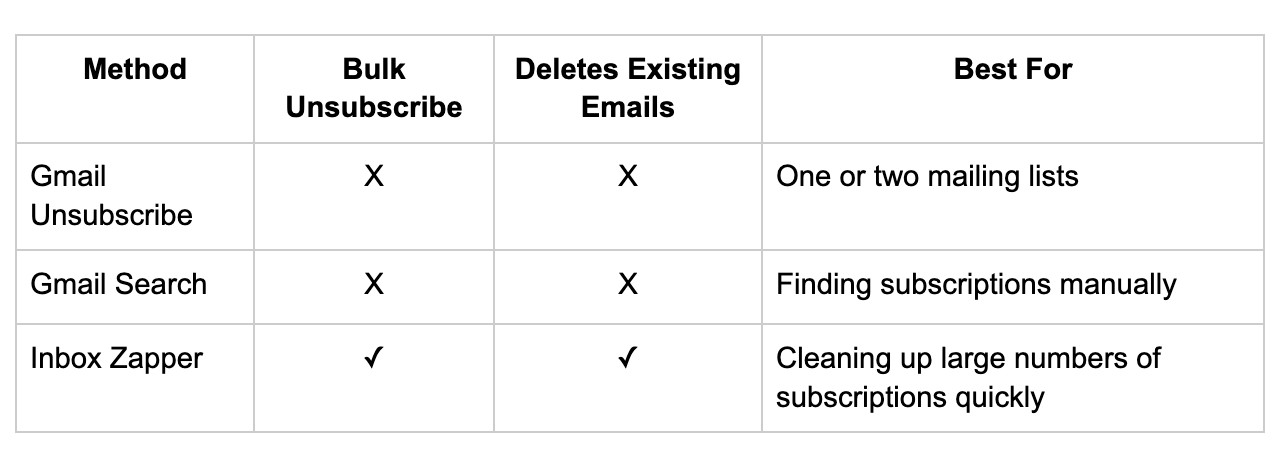
The short answer is no. Although Gmail includes an Unsubscribe button for many legitimate marketing emails, it only works on one sender at a time. There isn't a built-in feature that lets you review all of your subscriptions or unsubscribe from multiple mailing lists in a single action.
This means that if you've accumulated hundreds of promotional emails over several years, you'll need to either:
- Open each email individually and unsubscribe manually.
- Search your inbox to find subscription emails from specific senders.
- Use a dedicated email management tool that can identify and bulk unsubscribe from multiple mailing lists.
For anyone dealing with a heavily cluttered inbox, the third option is often the quickest and most effective, saving hours of repetitive manual work while dramatically reducing the volume of unwanted emails arriving in the future.
Method 1: Use Gmail's Built-in Unsubscribe Feature
If you only have a handful of unwanted subscriptions, Gmail's built-in unsubscribe feature is the simplest option. Many legitimate marketing emails include an Unsubscribe button at the top of the message, allowing you to opt out without scrolling to the bottom of the email.
How to unsubscribe from an email in Gmail
- Open Gmail and select a promotional or newsletter email.
- Look for the Unsubscribe link next to the sender's name at the top of the message.
- Click Unsubscribe.
- Confirm your choice if prompted.
In many cases, Gmail sends the unsubscribe request on your behalf, although some companies may redirect you to their own preferences page instead.
Advantages:
- No additional software required.
- Safe and built into Gmail.
- Works well for occasional subscriptions.
Limitations
The biggest drawback is that Gmail only lets you unsubscribe from one sender at a time.
If you're subscribed to 10 newsletters, this isn't much of a problem. But if you've accumulated hundreds of mailing lists over several years, the process quickly becomes repetitive.
You'll need to:
- Find each sender individually.
- Open at least one email from every mailing list.
- Click Unsubscribe.
- Confirm the request.
- Repeat the process for every subscription.
For people with busy inboxes, this can easily take hours.
It's also worth noting that not every sender supports Gmail's unsubscribe feature. Some emails require you to scroll to the bottom and click a separate unsubscribe link, while others may only allow you to change your email preferences rather than stop emails completely.
If your goal is to remove dozens or hundreds of subscriptions, Gmail's built-in tools simply aren't designed for that level of inbox management. That's where bulk unsubscribe tools become a much more practical solution.
Method 2: Find and Remove Email Subscriptions Using Gmail Search
If your inbox is already full of promotional emails, Gmail's search function can help you find subscriptions more quickly. While it still won't let you unsubscribe from multiple senders at once, it does make it easier to identify the mailing lists filling up your inbox.
Search for emails with an unsubscribe link
Most legitimate marketing emails include the word "unsubscribe" somewhere in the message, usually in the footer.
Simply type the following into Gmail's search bar:
“unsubscribe”
This will return emails that contain the word "unsubscribe", helping you locate newsletters, promotional emails and other marketing communications.
Search your Promotions tab
If Gmail automatically sorts your inbox, you can narrow your search even further by searching:
“category:promotions”
Or combine the two searches:
“category:promotions unsubscribe”
This makes it easier to focus on marketing emails without sifting through personal or work-related messages.
Search by sender
If you know a company sends frequent emails, you can search for them directly.
For example:
“from:amazon”
or
“from:spotify”
You can then open one of their emails and use Gmail's unsubscribe feature if it's available.
Why This Still Isn't a True Bulk Unsubscribe
Although Gmail's search tools help you locate unwanted emails more efficiently, they don't automate the cleanup process.
You'll still need to:
- Open emails individually.
- Unsubscribe from each sender one at a time.
- Repeat the process for every mailing list.
- Delete old emails separately if you want to remove them from your inbox.
For someone with years' worth of subscriptions, this can quickly become an overwhelming task.
Imagine you're subscribed to 250 different mailing lists. Even if each unsubscribe only takes 20 to 30 seconds, you're still looking at well over an hour of repetitive clicking. And that's before you start deleting the thousands of old emails those subscriptions have already generated.
If your goal is simply to stop one or two newsletters, Gmail's search tools work perfectly well. But if you're trying to reclaim a cluttered inbox, they're only a partial solution. That's where dedicated email management tools can save a significant amount of time by helping you review, unsubscribe from and remove multiple subscriptions far more efficiently.
Method 3: Use a Bulk Email Unsubscribe Tool
If you're dealing with years of accumulated subscriptions, a dedicated email management tool is by far the fastest way to clean up your inbox.
Instead of opening emails individually and unsubscribing one sender at a time, bulk unsubscribe tools scan your inbox, identify recurring senders and allow you to review your subscriptions from a single dashboard.
This can reduce what would normally take hours into just a few minutes.
How Tools Like Inbox Zapper Helps You Mass Unsubscribe
Inbox Zapper is designed specifically for people who want to regain control of an overcrowded Gmail inbox without spending hours manually sorting emails.
Rather than forcing you to search through thousands of messages, Inbox Zapper automatically identifies the senders you receive the most emails from, making it easy to see which subscriptions are contributing most to your inbox clutter.
With Inbox Zapper, you can:
- View your email subscriptions in one place.
- Identify newsletters and promotional senders instantly.
- Bulk unsubscribe from multiple mailing lists.
- Delete existing emails from unwanted senders.
- Free up Gmail storage by removing thousands of unnecessary emails.
- Keep important emails visible by reducing future inbox clutter.
Whether you've subscribed to 50 newsletters or 500, Inbox Zapper dramatically reduces the time and effort required to clean up your inbox.
Why Bulk Unsubscribing Saves So Much Time
One of the biggest advantages of using a dedicated unsubscribe tool is definitely speed and efficiency, but also visibility.
Most people have no idea how many mailing lists they're actually subscribed to until they see them all in one place.
Instead of asking yourself:
"What newsletters have I signed up for?"
You can immediately answer:
- Which senders email me most often?
- Which subscriptions have generated thousands of emails?
- Which companies haven't emailed me in years?
- Which mailing lists do I actually still want?
Having this overview makes it much easier to make informed decisions about what stays and what goes.
More Than Just Unsubscribing
Stopping future emails is only half the job.
Even after you've unsubscribed, your inbox may still contain years' worth of promotional emails taking up space and making it harder to find the messages you actually care about.
That's why many people choose to remove old marketing emails at the same time they unsubscribe. Deleting thousands of outdated newsletters and promotions creates immediate improvements to inbox organisation, making Gmail easier to search, navigate and manage going forward.
By combining bulk unsubscribing with bulk deletion, you can transform an inbox that's been building up for years in a single clean-up session, rather than gradually chipping away at it one email at a time.
Take Control of Your Gmail Inbox Today
If you're only trying to unsubscribe from one or two newsletters, Gmail's built-in tools are usually enough. But if your inbox is filled with hundreds of unwanted subscriptions, manually working through them one by one quickly becomes frustrating.
Inbox Zapper makes it easy to:
- Identify the mailing lists cluttering your inbox
- Unsubscribe from multiple senders
- Remove old promotional emails in a fraction of the time it would take to do manually.
Whether you're aiming for Inbox Zero, reducing distractions or simply making Gmail easier to manage, bulk unsubscribing is one of the fastest ways to take back control of your inbox.
Ready to stop unwanted emails for good? Try Inbox Zapper today and clean up your Gmail inbox in minutes.
—-----------------
Frequently Asked Questions
Can I unsubscribe from all emails in Gmail at once?
No. Gmail doesn't currently offer a feature that lets you unsubscribe from every mailing list in a single click. You can unsubscribe from individual senders using Gmail's built-in unsubscribe button, or use a dedicated email management tool like Inbox Zapper to review and unsubscribe from multiple mailing lists much more efficiently.
Does Gmail have a bulk unsubscribe feature?
No. While Gmail makes it easy to unsubscribe from many legitimate marketing emails, it only supports one sender at a time. There isn't a native way to bulk unsubscribe from all of your email subscriptions.
What's the fastest way to mass unsubscribe from emails in Gmail?
If you only have a few unwanted subscriptions, Gmail's unsubscribe button works well. However, if you're trying to remove dozens or hundreds of mailing lists, a bulk unsubscribe tool can save a significant amount of time by letting you review and manage multiple subscriptions from one place.
Is it safe to unsubscribe from marketing emails?
Yes, as long as the emails come from legitimate businesses you've previously subscribed to. For suspicious or unsolicited emails, it's usually better to mark them as spam rather than clicking an unsubscribe link, as malicious senders may use it to confirm that your email address is active.
Why am I still receiving emails after unsubscribing?
Many companies state that it can take several days for unsubscribe requests to be processed. You may also continue receiving transactional emails, such as order confirmations, receipts or account notifications, as these are separate from marketing communications.
Can I unsubscribe from hundreds of email subscriptions?
Yes. While Gmail requires you to unsubscribe one sender at a time, dedicated inbox management tools are designed to help you identify and manage large numbers of subscriptions much more efficiently.
What's the best way to clean up years of email subscriptions?
If you've accumulated hundreds or thousands of promotional emails over time, manually unsubscribing from each sender can be extremely time-consuming. Using a tool like Inbox Zapper allows you to identify your subscriptions, unsubscribe from multiple mailing lists and remove unwanted emails far more quickly.